PDF too large to email? How to compress, split or merge PDFs on your iPhone
PDF too large to email? Compress it on your iPhone, split it into smaller parts, or combine several PDFs into one file before you send.
You attach a PDF, hit send, and the email bounces back. The file is too big. Or an upload form says one file only, and you have four.
There are three ways out: make the file smaller (compress), cut it into parts (split), or put several files into one (merge). This guide shows the built-in iPhone options first, then how to do each one in myPDF. We make myPDF, so it’s the tool we know best.
Try the built-in options first
Before you install anything, check whether your iPhone already covers what you need.
- Mail Drop. If you send from Apple’s Mail app and the attachment is too large, Mail may offer to send it with Mail Drop. The file goes to iCloud and the other person gets a download link. That solves “too large to email” without changing the PDF. It doesn’t help when a website or form has its own size limit.
- Create PDF in Files. In the Files app, tap Select, pick several files, tap the … button and choose Create PDF. That combines them into one PDF. It works well for a few images or short files. You get less control over the page order.
If one of those does the job, you’re done. If the file itself has to be smaller, or you need to pick exactly which pages go where, read on.
In myPDF, compress, split and merge are part of myPDF Pro.
How to compress a PDF on iPhone
- Open the PDF in myPDF.
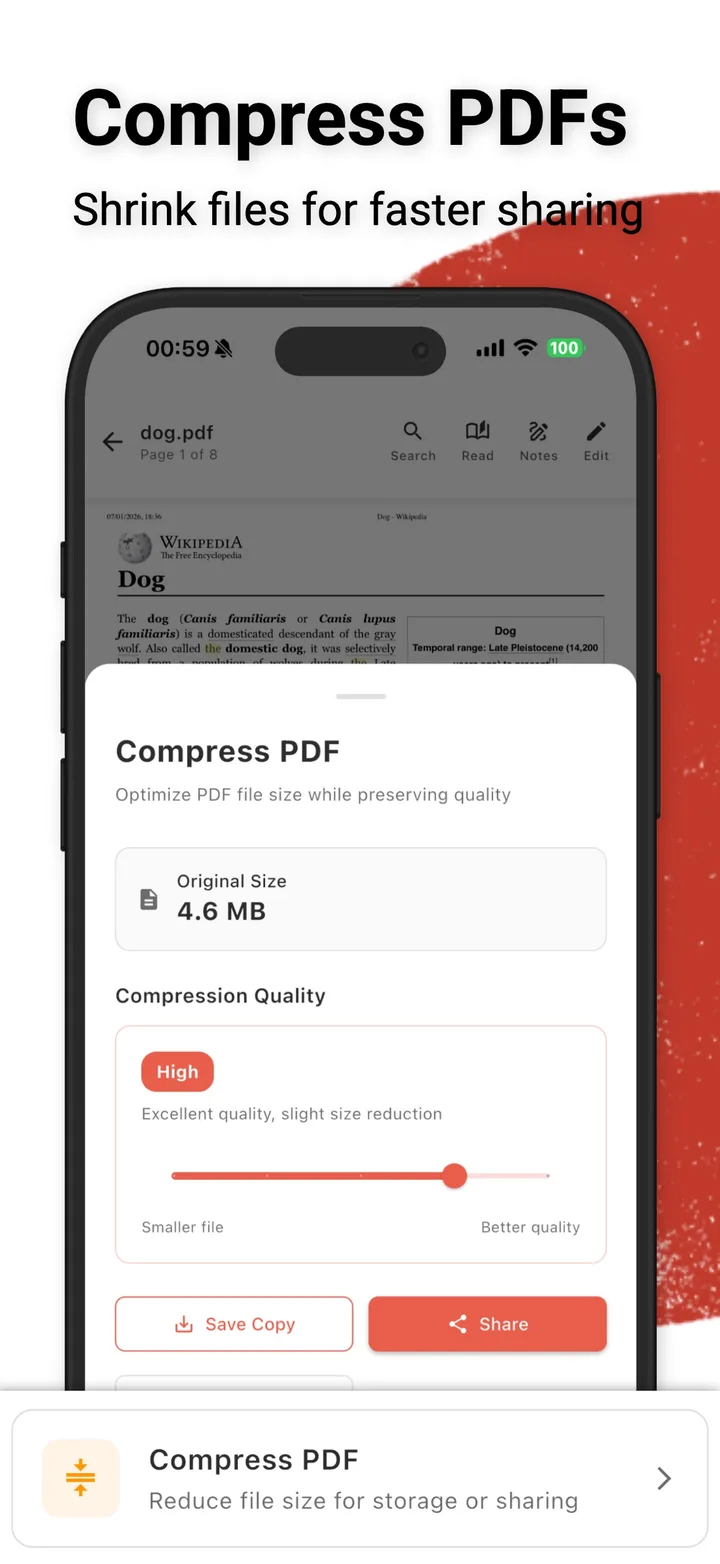
- Choose Compress PDF (“Reduce file size for storage or sharing”). A panel opens and shows the Original Size of the file.
- Set the Compression Quality. Drag the slider toward Smaller file or toward Better quality. The label tells you what to expect. High, for example, means excellent quality and a slight size reduction.
- Tap Save Copy to keep the smaller version next to the original, or Share to send it straight away.
Start near the quality end. If the file is still too big, move the slider one step toward Smaller file and try again. Since Save Copy leaves the original alone, you can try a couple of settings.
How to split PDF pages on your phone
Splitting helps when a form only wants some of the pages, or when one big file has to go out in two emails.
- Open Split PDF and pick the file. You’ll see its name and page count.
- Tap Add Range. Page thumbnails appear under Select Pages.
- Tap the first page, then tap the last page of the part you want. The app shows what you picked, for example “Pages 1 - 2 (2 pages)”. Tap Clear if you picked the wrong one.
- Tap Add Range to confirm. It shows up under Split Ranges.
- Add more ranges the same way, one for each new file you want. The x next to a range removes it.
How to combine PDFs on iPhone
- Open Merge PDFs and add the files you want to join.
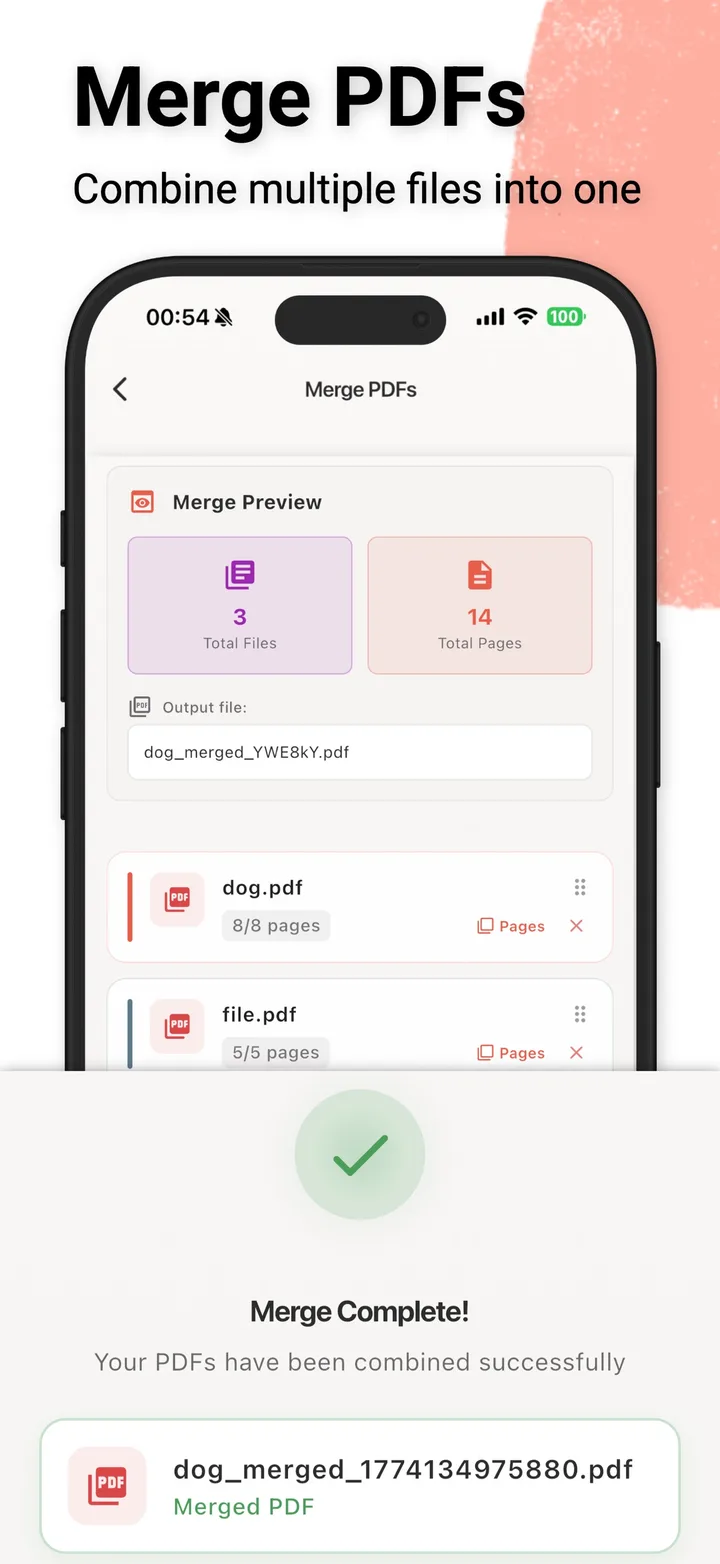
- Check the Merge Preview. It shows the total number of files and pages, and the name of the output file.
- Put the files in order. Use the handle on each file to drag it up or down. Tap Pages on a file to choose which of its pages go in. The x removes a file from the list.
- Start the merge. When it’s done you’ll see Merge Complete! and the new file, marked Merged PDF.
This is handy for job applications: CV, cover letter and certificates in one file, in the order the recruiter expects.
Tips
- Merge first, compress last. If you’re combining files and also need a small result, compress the merged file at the end. That way you only lose quality once.
- Keep the original. Use Save Copy when you compress, so you still have the full-quality file if someone asks for it.
- Check the result before you send. Open the new file and scroll through it. Make sure small print is still readable and nothing is missing.
What this can’t do
Compression works mostly by shrinking the images inside a PDF. So how much you save depends on the file. A scan or a PDF full of photos can shrink a lot. A PDF that’s mostly plain text is already small, and compression won’t change it much. In that case, splitting is often the better fix.
Compression also has a cost. The smaller you go, the softer images and scanned text get. For a contract or anything with fine print, stay closer to Better quality and check that it’s still legible.
These steps are written for iPhone and iPad. myPDF is on Google Play too, but the Android feature set may differ, so check there before you count on it.
Quick recap
Too large to email? Try Mail Drop first. If the file itself must be smaller, compress it with Save Copy and check the quality. Need fewer pages? Split it. Need one file? Merge, then compress at the end.