
How to fill an XFA form that says "Please wait..." on Windows or Mac
Your PDF form only shows "Please wait..." or asks for Adobe Reader? It's an XFA form. Here's how to open, fill and save it on a Windows PC or a Mac.
You download an official form, open it, and instead of the form you get one line of text: “Please wait… If this message is not eventually replaced by the proper contents of the document, your PDF viewer may not be able to display this type of document.” Or the page tells you that you need Adobe Reader. You wait. Nothing changes.
The file isn’t broken. It’s an interactive form of a kind most PDF apps can’t show, and this guide explains what it is and how to fill it in on a Windows PC or a Mac. We make myPDF, so it’s the tool we know best. Opening and filling these forms works in myPDF without Premium.
What “Please wait…” actually means
Most PDF forms are ordinary PDFs with fields placed on the page. The forms that show “Please wait…” are built differently. They are called XFA forms (sometimes “dynamic” or “LiveCycle” forms), and the real form is stored inside the file as a set of instructions that the viewer has to build when it opens.
A viewer that doesn’t understand those instructions can’t build the form. So it shows the fallback page that the form’s author put there, the one with the “Please wait” message. That’s why the same file looks blank or stuck in a browser, in Preview on the Mac or in many free PDF apps, and why the message asks for Adobe Reader.
You’ll mostly see this with government, immigration, tax and HR forms.
Before you start: download the file
Don’t fill the form in your browser tab. The browser’s own PDF viewer is often the thing showing “Please wait…”, and even when it shows something, what you type may not end up in the file.
- Save the PDF to your computer. On the download page, right-click the link and choose to save it, or use the download button in the browser’s PDF bar.
- Keep a blank copy. Duplicate the file before you start, so you can begin again if you need to.
How to fill an XFA form on Windows or Mac
- Install myPDF. On Windows it’s on the Microsoft Store for Windows 10 (version 19045 or later) and Windows 11. On a Mac it’s on the Mac App Store, for Macs with Apple silicon and macOS 13.0 or later. The links are at the end of this page.
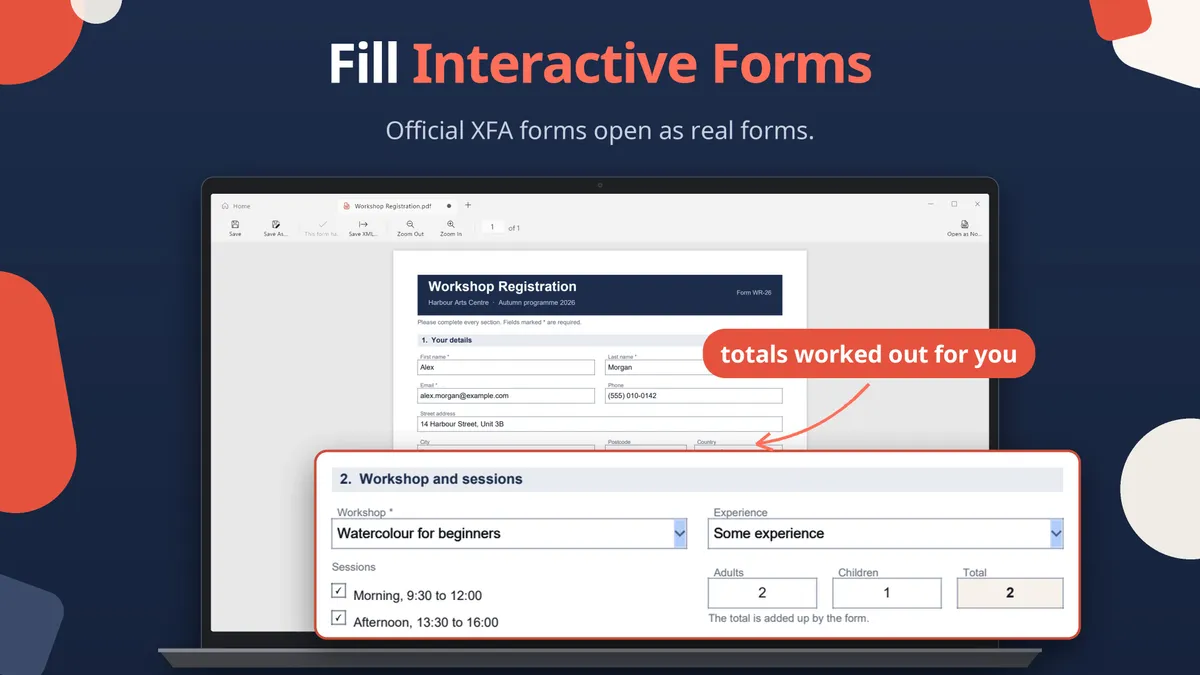
- Open the form in myPDF. On Windows you can open it from File Explorer or drop it on the window. On the Mac, open it from Finder. The form opens as a real form instead of the “Please wait” page.
- Fill it in. Type into the text fields, tick the checkboxes and pick from the lists. If the form adds up totals for you, they fill in as you go.
- Allow it to go online only if you want to. Some forms try to fetch data from the internet, for example to fill a list of options. myPDF asks you first, so nothing is sent without your OK.
- Run the form’s own check. Many official forms have a validate or check button built into the page that looks for missing or wrong answers. Use it before you save, and fix anything it points out.
- Save it. Save your work as you would any PDF (Ctrl+S on Windows). If the office asks for the form’s data instead of the PDF, use Save XML in the toolbar to save that data as an XML file.
- Sign it on the Mac if the form asks for it. On the Mac you can sign the form as well.
Tips
- Read the instructions that came with the form. Offices usually say whether they want the PDF itself, a printed copy or the form’s data, and how to send it.
- Open the saved file again before you send it. Close the form, open it again in myPDF and scroll through every page, so you know your answers were saved.
What this can’t do
- We can’t promise a specific office will accept the form. myPDF opens the form, lets you fill it in, runs the form’s own check and saves it. Whether a given agency or portal accepts the result is up to them, so follow their instructions for sending it.
- Forms with barcodes aren’t covered by this guide. Some forms print a barcode with your answers. We haven’t checked how those come out, so don’t rely on it.
- XFA forms need a computer. This works in myPDF on Windows and on the Mac. It doesn’t work in myPDF on iPhone, iPad or Android.
- Windows needs an x64 PC. The Store version doesn’t run on ARM PCs, Windows 7 or 8, or Windows 10 builds before 19045.
Quick recap
“Please wait…” means the PDF is an XFA form that your current viewer can’t build. Download the file, open it in myPDF on a Windows PC or a Mac, fill it in, run the form’s own check and save it, with Save XML if the office wants the data. Then open the saved file once more before you send it.