
How to fill out a PDF form on your iPhone
Fill out a PDF form on your iPhone: type into the fields, tick the boxes, sign it and send it back. Plus what to do when a form won't let you type.
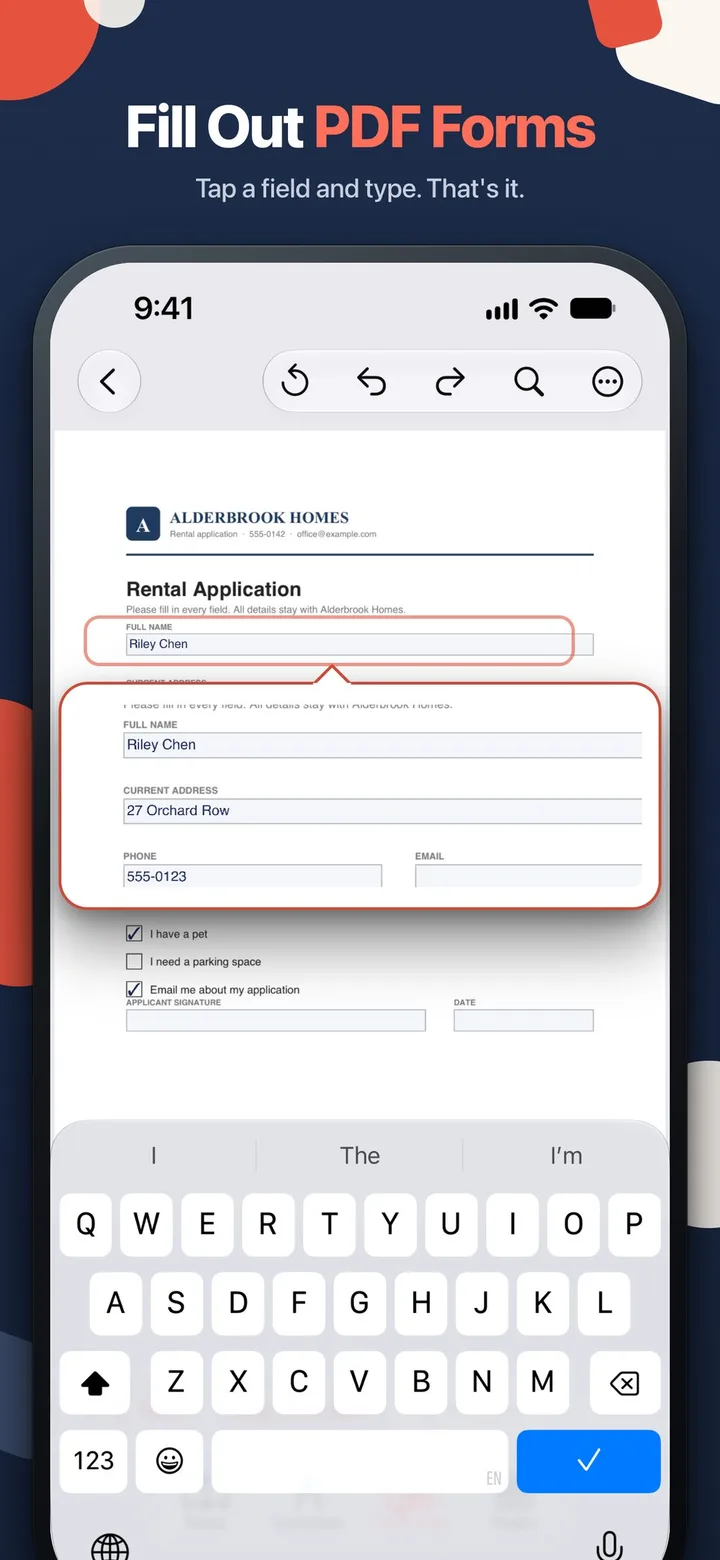
A rental application, a school permission slip, a new patient form. It lands in your inbox as a PDF, it has to come back filled in, and the only device you have with you is your phone.
You don’t need to print it, fill it in by hand and scan it again. This guide shows how to fill out a PDF form on your iPhone, and what to do when the form won’t let you type. We make myPDF, so it’s the tool we know best. Filling and signing forms works in myPDF without Pro.
First, find out what kind of form it is
PDF forms come in two kinds, and the steps are a little different for each.
- Fillable forms have real fields built into the file. When you tap a box, you can type into it right away.
- Flat forms only look like forms. The boxes are just lines on the page, because the file was scanned, photographed or “flattened” when it was saved. Tapping a box does nothing.
You find out which one you have in the first step below. Both can be filled in on your iPhone.
How to fill out a fillable PDF form on iPhone
- Open the PDF in myPDF. If it came as an email attachment, save it to Files first so it’s easy to find.
- Tap Fill & Sign in the bar at the bottom of the screen.
- Tap a field and type. The keyboard opens and your text goes straight into the box. Tap the next field and keep going.
- Tick the checkboxes and pick the options. Tap a checkbox to tick it. For a question with radio buttons, tap the answer you want.
- Sign it if the form asks for a signature. Tap New, draw your signature with your finger or Apple Pencil, and place it on the signature line. Your signature is saved for the next form.
- Check every page, then send it back the way the sender asked for it.
If you’ve made a mess of it and want to start over, use Reset form. It clears the form so you can fill it in again.
When a form won’t let you type
If tapping a box does nothing, it’s a flat form. You can still fill it in, the same way you would with a pen.
- Tap Fill & Sign, then Add text.
- Tap the spot on the page where the answer should go, and type.
- Move the text box so it sits on the line or inside the box. You can delete it and add it again if it’s in the wrong place.
- Repeat for each answer, then add your signature with New.
Zoom in before you place each text box. Small boxes on a phone screen are easy to miss by a few millimetres, and it shows when the other person prints the page.
If the form only exists on paper, scan it with myPDF first. The scanner finds the edges of the page and takes several pages in one go. Then fill in the scan with Add text.
Check it before you send it
A filled form that arrives blank is the worst outcome, because you usually hear about it days later.
Before you send it, open the finished PDF in a second app, for example the Files app’s preview, and scroll through every page. If your answers show there, they will most likely show for the person you send it to. If something is missing, go back and add it with Add text, which stays visible in any viewer.
Tips for a smooth form
- Keep a blank copy. If you might need the form again, for another child or next year, duplicate the file before you start.
- Write dates the way the form asks. If the box says DD/MM/YYYY, use that, even if your phone shows dates the other way round.
- Use the same name everywhere. Forms often ask for your name twice, once printed and once next to the signature. Make them match.
- Do the signature last. Fill in every field first, so you sign the finished version.
For more on signatures, including how to use a photo of the one you signed on paper, see how to sign a PDF on your iPhone.
What this can’t do
- It can’t turn a flat form into a fillable one. On a scanned or flattened form you place text boxes yourself. It works, it just takes a little longer.
- It’s not a certificate-based digital signature. Your signature is drawn or taken from a photo. That’s fine for most everyday forms, like a lease, a permission slip or a job application. If a form says it needs a “qualified” or “certified” digital signature, ask the sender which kind they accept.
- These steps are for iPhone and iPad. myPDF is on Google Play too, but we haven’t checked the Android screens for this guide.
Quick recap
Open the form in myPDF and tap Fill & Sign. If the fields take your typing, tap each one, tick the boxes and sign. If nothing happens when you tap, use Add text to place each answer yourself. Check the result in a second app, then send it back.