How to sign a PDF on your iPhone
Sign a PDF on your iPhone without printing it. Draw or upload your signature, type your name and date, and reuse the same signature next time.
Someone sends you a PDF and needs it signed and back today. You don’t need a printer for that, and you don’t need a scanner. You can do the whole thing on your iPhone.
This guide uses Fill & Sign in myPDF. We make myPDF, so it’s the tool we know best. Signing is free in the app.
What you need
- An iPhone or iPad on iOS 16 or newer.
- The myPDF app.
- The PDF itself. If it came as an email attachment, save it to Files first so it’s easy to find.
If the form only exists on paper, scan it with myPDF first. The scanner finds the edges of the page and takes several pages in one go, so you end up with a clean PDF you can sign.
How to sign a PDF on iPhone, step by step
- Open the PDF in myPDF.
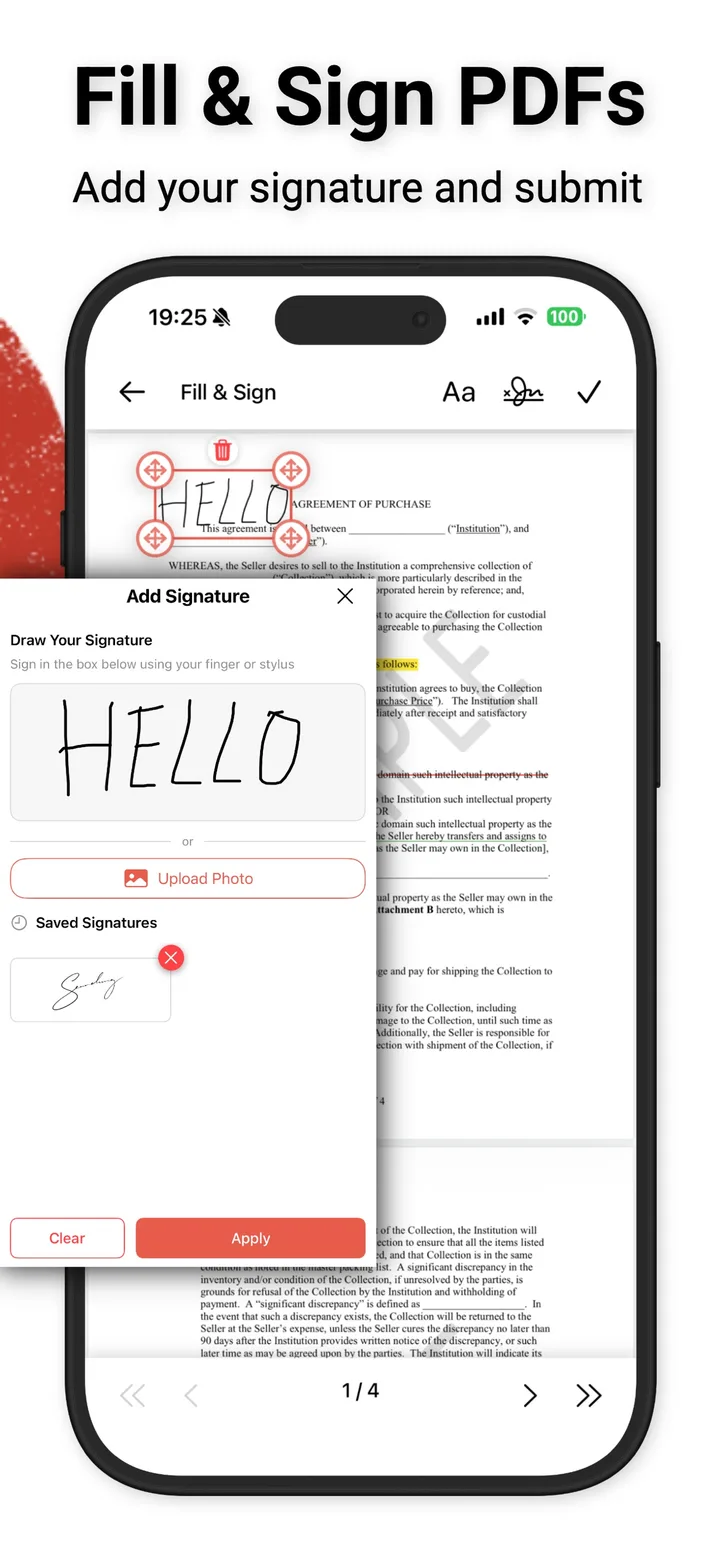
- Tap Fill & Sign. The document opens with a few buttons along the top: one for text, one for your signature, and a check mark.
- Tap the signature button. A panel called Add Signature opens.
- Draw your signature in the box with your finger or a stylus. If it comes out wrong, tap Clear and try again.
- Tap Apply, then tap the spot on the page where the signature should go.
- Move and resize it. Drag it onto the signature line. Pull a corner to make it bigger or smaller. The bin icon above it removes it if you want to start over.
- Tap the check mark at the top right and confirm to save.
That’s it. Send the signed PDF back the usual way, by email or wherever the other person asked for it.
Fill in the rest of the form
Most forms want more than a signature. Usually it’s your printed name, the date, and sometimes an address or an ID number.
Tap the text button (the one marked Aa), then tap the place on the page where the text should go and type. Do this once per field. Text boxes can be moved and deleted the same way as signatures.
This is also how you fill out a PDF form on your phone when it has no fillable fields. You put the text exactly where it needs to be, like you would with a pen.
Use a photo of your signature instead
Some people don’t like how their signature looks when drawn with a finger. That’s fair. It rarely looks like the one on paper.
In the Add Signature panel, tap Upload Photo and pick a photo of your signature. You can crop it so only the signature is left, then apply it like a drawn one.
To get a good photo:
- Sign on plain white paper with a dark pen.
- Take the photo in daylight or under a bright lamp, straight from above.
- Crop close to the ink so there isn’t a big white box around it.
Next time, skip the drawing
Once you’ve added a signature, it shows up under Saved Signatures in the same panel. The next time you sign something, tap it and it goes straight onto the page. No drawing it again.
If you saved one you don’t like, tap the small red x on it to remove it.
Tips for a clean result
- Draw big. Use the whole box when you draw, then make it smaller on the page. A large drawing scaled down looks steadier than a small one.
- Use a stylus if you have one. On an iPad with a pencil, the lines come out closer to real ink.
- Check the whole page before you save. Make sure the signature sits on the line and the date is in the right box.
- Keep an unsigned copy if you might need it. Saving writes the changes into the PDF for good, and you can’t undo it afterwards. If you think you’ll need a clean version later, make a copy before you sign.
What this can’t do
It’s worth being clear about one thing. What you add in Fill & Sign is your handwritten signature placed on the page. It is not a certificate-based digital signature, the kind issued through a bank, an employer’s system or a government ID.
For most everyday paperwork that’s fine. Think of a lease, a permission slip, a job offer or an invoice. But if the form says it needs a “qualified” or “certified” digital signature, this isn’t that. Ask whoever sent it which kind they accept.
Also, these steps are written for iPhone and iPad. myPDF is on Google Play too, but the screens there may look different.
Quick recap
Open the PDF in myPDF, tap Fill & Sign, draw or upload your signature, place it, add any text the form needs, and save. The second time is faster, because your signature is already saved.