
How to edit text in a PDF on your iPhone
Fix a typo, a wrong date or a misspelled name in a PDF on your iPhone, in the file itself, without the original Word document.
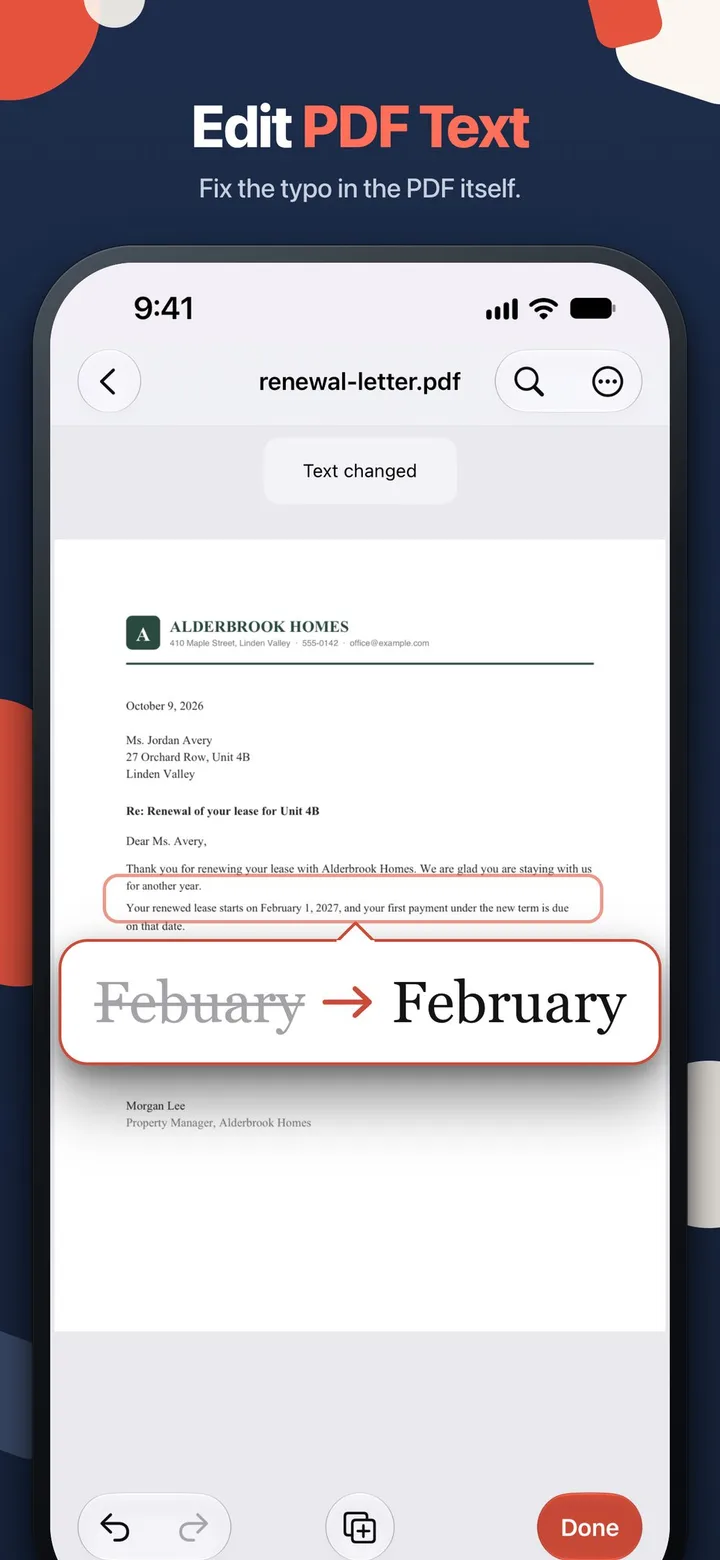
The letter is ready to send and then you see it: “Febuary”. Or the invoice still has last month’s date, or a name is spelled wrong in the second line. The Word file is on someone else’s laptop, or there never was one because the PDF came out of a website.
You don’t need the original to fix one line. This guide shows how to edit text in a PDF on your iPhone, in the file itself, and how to check the change before you send it. We make myPDF, so it’s the tool we know best. Edit text is part of myPDF Pro on iPhone and iPad.
First, check that the PDF has real text
PDFs come in two kinds, and that decides whether this works at all.
- PDFs made on a computer (exported from Word or Pages, saved from an online form, sent by a billing system) have real text in them. These can usually be edited.
- Scanned pages and photos are pictures of text. There are no letters to change, only pixels.
The quick test takes a few seconds. Open the PDF, press and hold on a word. If the word gets selected, the page has real text. If nothing happens or the whole page gets selected like an image, it’s a scan.
How to edit text in a PDF on iPhone
- Keep a copy of the original. In the Files app, press and hold the PDF and tap Duplicate. If something goes wrong, you still have the untouched file.
- Open the PDF in myPDF. If it came by email or in a chat, save the attachment to Files first, then open it from there.
- Choose Edit text from the editing tools.
- Tap the line you want to change. That line becomes editable.
- Fix the word, the date or the number. Type as you normally would. Try to keep the new text about as long as the old one, so the line still fits where it was.
- Finish the edit and look at the whole page. Not only the line you changed, but the lines around it too.
- Save and share the file by mail, or save it back to Files.
If a page or a font can’t be edited, myPDF tells you so instead of guessing. More on that below.
Check it before you send it
A minute of checking saves you the “sorry, small correction” email.
- Zoom in on the line. The new text should sit on the same baseline as the words next to it, in the same size. If the line looks crowded, a shorter wording usually fixes it.
- Look for the other places. A wrong date tends to show up more than once: in the header, in the body, next to the signature line. Search the document for the old word and fix every place you find it.
- Check the file name. “Invoice_Febuary.pdf” still carries the typo. Rename it in Files before you send it.
When you shouldn’t edit it yourself
Some documents aren’t yours to change, even if the app can do it.
- Signed documents. If someone has already signed, changing a line afterwards changes what they agreed to. Ask for a corrected version and sign that one.
- Documents from someone else. A bank statement, a certificate or a contract the other side sent you should be corrected by them. Point out the mistake and ask for a new file.
Edit text is for your own documents: the letter you wrote, the invoice you sent, the form you filled in and then noticed the typo.
What this can’t do
- Scanned pages can’t be edited. There is no text on them to change. If you only need to add something, like a missing date, Fill & Sign can add text anywhere on the page. That puts new text on top. It doesn’t replace what’s printed there.
- Some fonts can’t be edited. Some PDFs are made in a way that keeps the text from being changed. myPDF says so when that’s the case, and then the source file is the way to go.
- It’s for fixing lines, not rewriting pages. Changing a word, a date or a number works well. If whole paragraphs need to change, open the original document if you can get it.
- These steps are for iPhone and iPad. myPDF for Mac has Edit text too: click a line and fix it. On the Mac, password-protected PDFs can’t be edited. myPDF is on Google Play too, but we haven’t checked the Android steps for this guide.
Quick tips
- If the wrong thing is a picture, not text, Edit images lets you move, resize or replace a picture on the page (also Pro).
- If a number has to disappear rather than change, don’t edit it to “XXXX”. Redact it so the text is really removed.
- If the file is too big to email afterwards, see how to compress a PDF on your iPhone.
Most of the time it’s one wrong word in an otherwise finished document. Fixing it on the phone takes less time than asking someone to send the Word file again.