
myPDF vs the PDF tools on your iPhone: what you can do without paying
What your iPhone already does with PDFs, what myPDF adds without Pro, and which jobs need myPDF Pro, a one-time purchase. As of October 2026.
Before you download any PDF app, it’s worth knowing what your iPhone already does on its own. For a lot of people that’s enough. For some jobs it isn’t, and that’s where a PDF app earns its place.
We make myPDF, so we know it best. This page sets out the three levels plainly: what’s built into iPhone, what myPDF does without Pro, and what needs myPDF Pro. As of October 2026. myPDF 2.0 is on iPhone, iPad, Mac and Android with the same split between included tools and Pro (on the Mac, reordering, rotating, duplicating and deleting pages in an open document are included); the built-in column is about iPhone.
What your iPhone already does
Without installing anything, the Files app and Markup let you open and read a PDF, scan a paper document, draw or write on a page and add a signature. If you need to sign one page now and then, try that first.
Three levels, side by side
| Job | Built into iPhone | myPDF without Pro | myPDF Pro |
|---|---|---|---|
| Read a PDF | Yes | Yes, with Night and Sepia modes and table of contents | Yes |
| Sign a PDF | Yes, with Markup | Yes, with saved signatures and signatures taken from a photo of your own (ink only, no white box) | Yes |
| Fill a form | Depends on the form | Yes: text fields, checkboxes, radio buttons | Yes |
| Scan to PDF | Yes | Yes, with crop, rotate and filters per page | Plus searchable text and shadow cleanup |
| Highlight and notes | Yes, draw and write | Yes: highlight, underline, strike out, notes, stamps | Plus links and bookmarks |
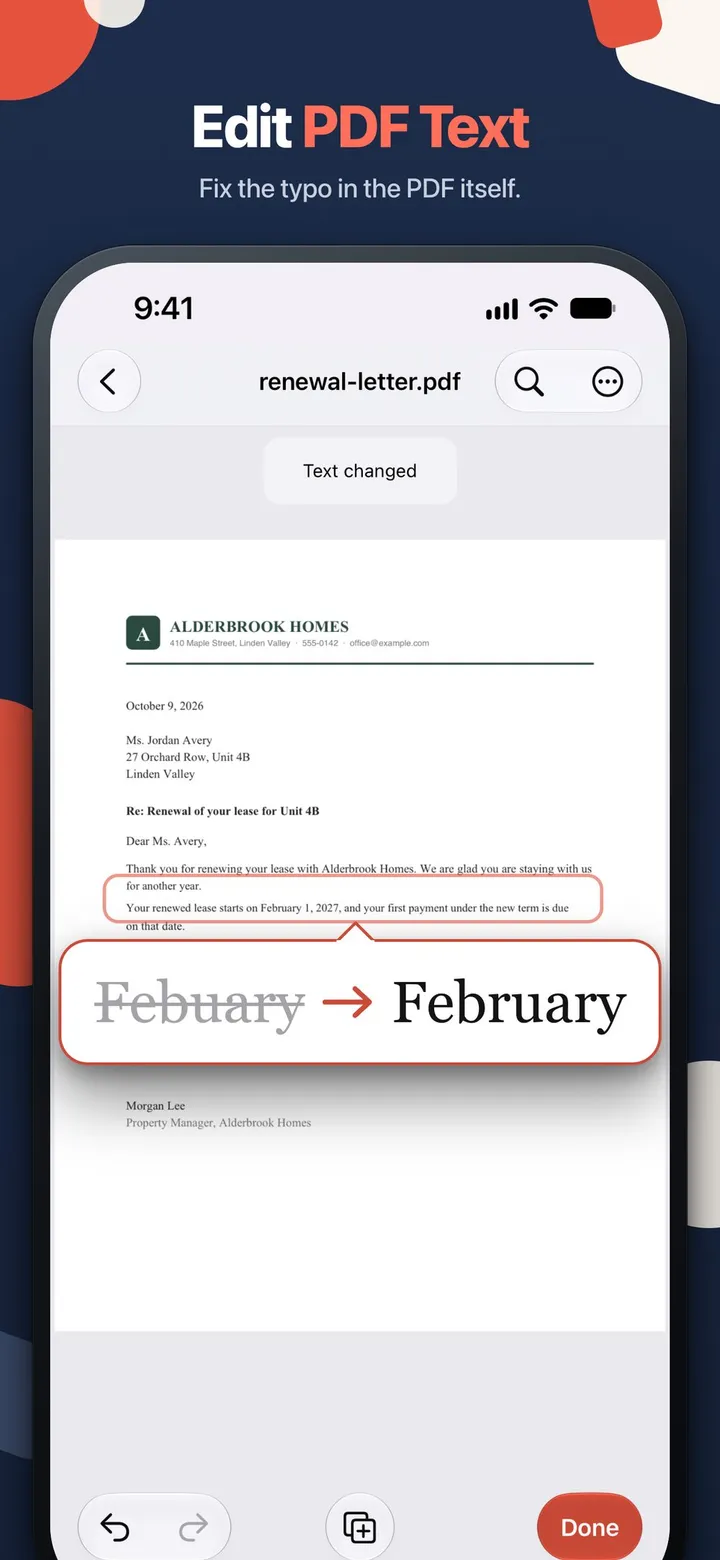
| Fix a typo in the PDF text | Yes | ||
| Replace an image or logo | Yes | ||
| Merge with page picking, split, compress | Yes | ||
| Convert Word, PowerPoint, Excel, EPUB to PDF and back | Yes | ||
| Redact so the text is removed | Yes | ||
| Password with owner limits | Yes | ||
| Ask a long PDF a question, with the page | Yes |
An empty cell means that level doesn’t cover the job in the way described, not that it’s impossible some other way.
How PDF apps usually charge
Most PDF apps cost nothing to download. After that, they tend to use one of three models:
- A subscription after a trial, often weekly or yearly.
- Ads in the version you don’t pay for.
- A one-time purchase that unlocks the paid tools for good.
None of these is wrong, but it helps to know which one you’re getting before you put your documents into an app. The App Store page lists the in-app purchases under “In-App Purchases”, so you can check before you download.
myPDF uses the third model. The included tools never need a purchase, Pro is one purchase, and there’s no account.
What myPDF Pro costs
Read from App Store Connect and Google Play on October 18, 2026, with the US price as the base. Prices vary by country; the store shows yours.
| Option | US price |
|---|---|
| Pro for iPhone and iPad, one-time | $6.99 |
| Pro for Mac, one-time | $6.99 |
| Pro for iPhone, iPad and Mac, one-time | $11.99 |
| Pro for Android, one-time | $9.99 |
During the trial, the paywall offers an early-bird price of $4.99 (iPhone and iPad, Mac, or Android), or $7.99 for the Apple bundle. Nothing renews. The full list of included and Pro tools is on myPDF: what comes with the app and what’s Pro.
Which one fits you
- You sign a form a few times a year. The built-in tools may be all you need. If the signature looks wrong or the form has fields, Fill & Sign in myPDF handles it without Pro.
- You scan receipts or paperwork. The scanner in myPDF, without Pro, is enough to get clean PDFs. Pro makes them searchable, so you can find a number later.
- You need to change what a PDF says. A typo, a wrong date, a logo: that’s Edit text and Edit images, which are Pro.
- You send files with private details. Redact in Pro removes the text under the box. A drawn black box over text is a different thing, and our guide to redacting a PDF shows how to test the difference.
- Your file is too big to email. Compress is Pro and keeps the text selectable. See how to compress a PDF on your iPhone.
What this page can’t tell you
- Every other app’s current pricing. Apps change their models often, so this page describes the common types rather than naming apps. Check the App Store page of any app you’re considering.
- Device differences. Compare PDFs and signing with a certificate are on the Mac only.
- Certificate signatures. On iPhone, iPad and Android, myPDF signatures are drawn or taken from a photo. If a form asks for a signature with a digital certificate, that’s myPDF for Mac (Pro), with a certificate or a USB token.
- Scanned pages can’t be text-edited. Edit text needs real text in the PDF; a scan is a picture. The app tells you when a page can’t be edited.
The cheapest option that does the job is the right one. For many people that’s the part that comes with the app.