How to redact a PDF on your iPhone (and check it really worked)
Black out an account number or address in a PDF on your iPhone, remove the text underneath for good, and test the file before you send it.
You need to send a bank statement, a lease or a pay slip, but not all of it. The account number, your address or someone else’s name has to go first. The usual quick fix is a black box drawn over the text. That often isn’t enough.
This guide shows how to redact a PDF on your iPhone so the text is removed, not just covered, and how to check the result before it leaves your phone. We make myPDF, so it’s the tool we know best. Redact is part of myPDF Pro.
Why a black box isn’t redaction
A PDF has layers. When you draw a rectangle or a thick highlight over a line, you add a new shape on top. The words are still underneath. Anyone who opens the file can often select the hidden line, copy it and paste it somewhere else, and there it is in plain text.
Real redaction removes the text from the page and leaves a black bar where it was. That is the difference that matters when the file contains an account number or an ID.
How to redact a PDF on iPhone, step by step
- Open the PDF in myPDF. If it came by email, save the attachment to Files first, then open it from there.
- Find the text. Use Search at the top of the document if you know what you’re looking for, such as the last digits of an account number. It’s faster than scrolling through a long statement.
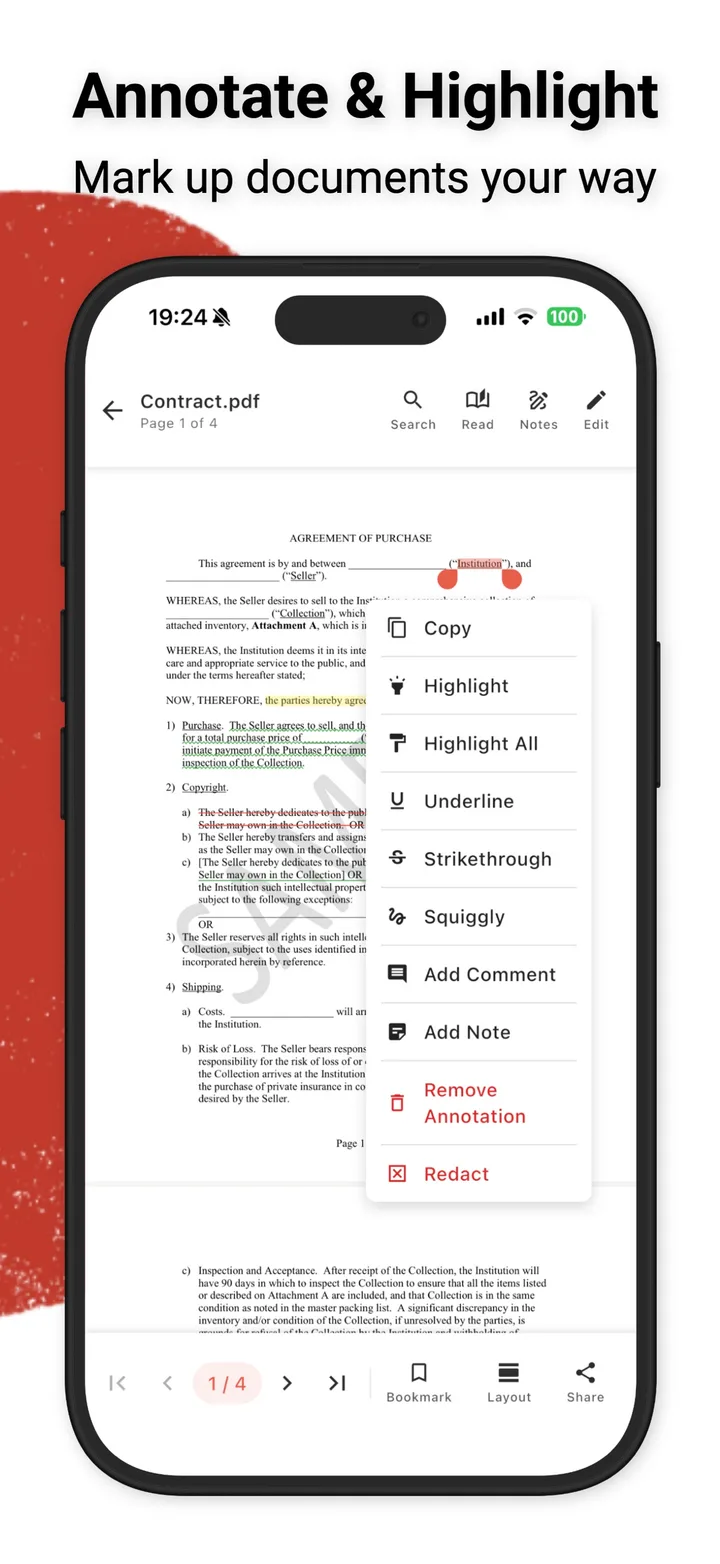
- Select it. Press and hold on the first word, then drag the handles until the whole part you want gone is selected.
- Tap Redact. It’s at the bottom of the menu that appears, under Copy, Highlight, Underline and the note options.
- Repeat for every place it appears. Account numbers and names tend to show up more than once: in the header, in a table, in the footer. Search for each one again.
- Check the confirmation. myPDF tells you how many areas were redacted permanently.
- Share the redacted copy. Use Share at the bottom of the screen to send it by mail or save it to Files.
If you want to keep the original as well, make a copy of the file in Files before you start, and redact the copy.
Check it before you send it
This takes a minute and catches most mistakes.
- The copy-paste test. Open the redacted file, press and hold on the black bar and try to select and copy it. Paste into Notes. Nothing of the hidden text should come back.
- The search test. Search the redacted file for the number or name you removed. It shouldn’t be found.
- Read every page. Statements repeat details on page 2 and 3. Look at each page, not only the first one.
- Check the file name. “Statement_JohnSmith_IBAN.pdf” gives away what you just removed. Rename it in Files before sending.
Add a password if it’s still sensitive
Some files should only be opened by the person you’re sending them to. myPDF can lock a PDF with a password, and that part is free. You type the password twice in the Password Protection dialog, and the file asks for it when it’s opened.
Send the password a different way than the file. If the PDF goes by email, send the password by text message or tell the person on the phone. A password in the same email doesn’t protect much.
What this can’t do
- It only works on text you can select. If a page is a photo or a scan without a text layer, there’s no text to select on it. Our guide to scanning a searchable PDF explains the difference.
- It doesn’t check for you. myPDF removes what you select. It doesn’t know which details are sensitive, so you still need to find every place a number or a name appears.
- Redaction is final in that copy. Once the text is removed, it isn’t coming back in that file. Keep the original somewhere safe if you’ll need it.
- Android isn’t covered here. These steps are written for iPhone and iPad. myPDF is on Google Play too, but we haven’t checked the Android steps for this guide.
Quick tips
- Redact before you add a signature or comments, so you only share the file once.
- If you’re sending a file that’s too big after scanning, see how to compress a PDF on your iPhone.
- For forms you need to sign, Fill & Sign works on the same file after redaction.
A black box looks safe on screen. The copy-paste test tells you whether it is.