How to scan a document to a searchable PDF on your iPhone
Turn paper into a clean, searchable PDF on your iPhone. Scan several pages, clean up shadows, and export with a text layer you can search and copy.
You scanned a stack of paper, and now you need to find one line in it. A normal scan is just a picture of the page. You can’t search it, and you can’t copy a sentence out of it. A searchable PDF fixes that: it looks the same, but it has a text layer underneath, so search and copy work.
This guide shows how to make one on your iPhone with the scanner in myPDF. We make myPDF, so it’s the tool we know best. Scanning is free in the app.
What you need
- An iPhone or iPad on iOS 16 or newer.
- The myPDF app.
- The paper, and a spot with decent light.
How to scan to a searchable PDF, step by step
- Open myPDF and tap Scan on the home screen.
- Point the camera at the page. The scanner looks for the edges of the paper, so you get the page and not the table under it.
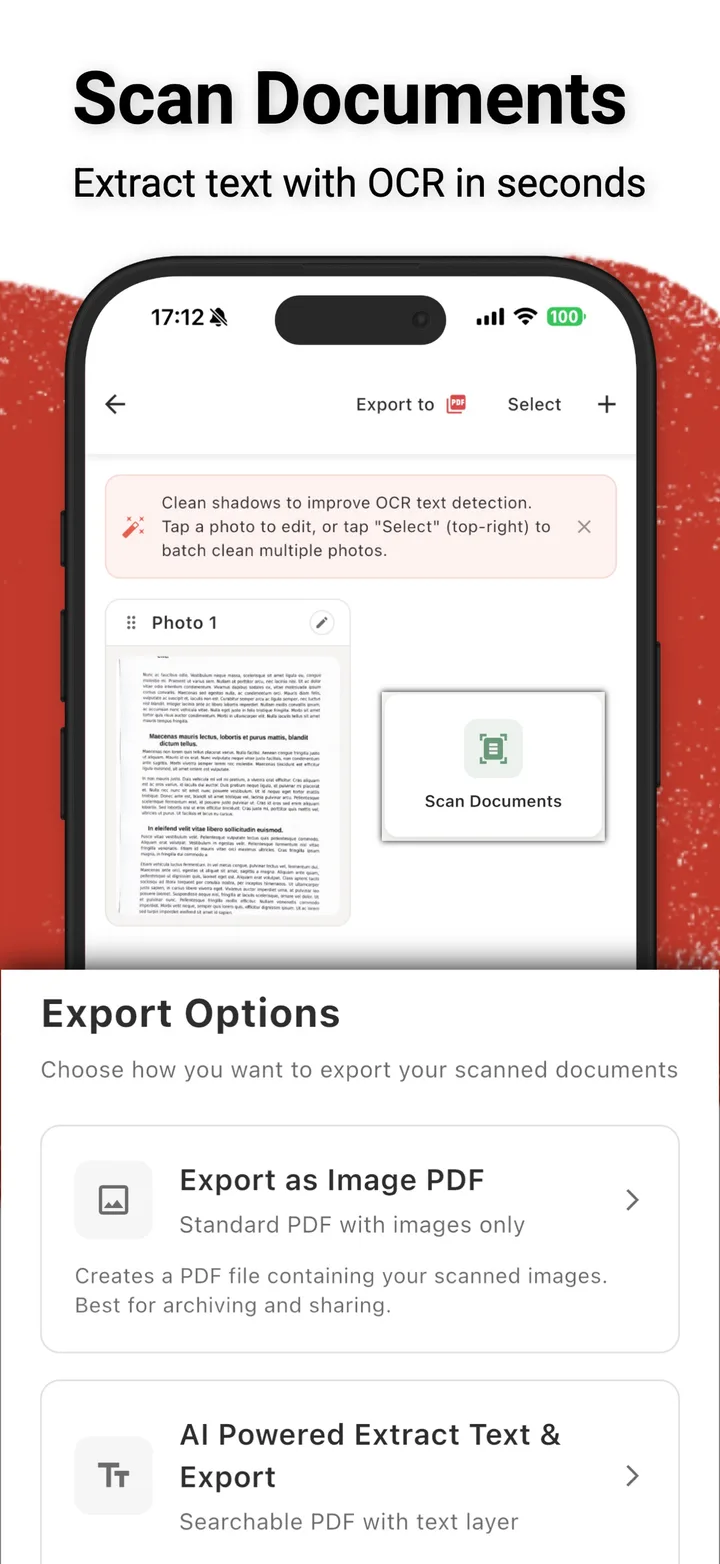
- Scan the next page. You can take several pages in one go. Each one shows up as its own photo (Photo 1, Photo 2 and so on).
- Clean up the photos if you need to. Tap a photo to edit it. If you have many pages, tap Select at the top right to clean several at once. The app suggests this for a reason: shadows on the page make text detection worse.
- Tap Export to at the top.
- Pick the export type. You get two options:
- Export as Image PDF: a standard PDF with the images only. Fine for archiving or sending a copy.
- AI Powered Extract Text & Export: a searchable PDF with a text layer. This is the one you want.
- Save the PDF where you’ll find it again, for example in Files.
Open the new PDF and search for a word from the page. If it jumps to the right spot, the text layer is there.
Image PDF or searchable PDF?
Both look the same when you read them. The difference shows up when you need the text.
Pick the image PDF when you only need a copy on record. A receipt for your files, a signed form you’re sending back, a page someone asked you to “just scan and send”.
Pick the searchable PDF when you’ll come back to it. Contracts, manuals, lecture handouts, old letters, tax papers. Anything where you’ll later think “where did it say that?” A searchable PDF also lets you select a paragraph and paste it into an email, instead of retyping it.
If you’re not sure, go with searchable. It costs you nothing when you read it later.
Tips for a better scan
- Get the light right. Daylight from a window works well. Avoid a single lamp from the side, which throws shadows across half the page.
- Keep your hand out of the frame. Your own shadow is the most common problem. Hold the phone straight above the page, not at an angle.
- Flatten the page. Curled pages and book spines bend the lines of text, and bent lines are harder to read for OCR.
- Use a dark, plain surface. A white page on a dark table makes the edges easy to find.
- Clean shadows before you export. The text is read at export time. Fixing a shadow first is quicker than rescanning later.
- Scan one document per PDF. A 40-page PDF with three unrelated letters in it is hard to search in a useful way.
What to do with it next
Once the paper is a PDF, the other tools work on it like on any other file.
If the scan is a form you need to send back signed, sign it on your iPhone with Fill & Sign. You can also highlight parts of it, add notes, or lock it with a password before you send it.
What this can’t do
OCR reads text from a picture, and it isn’t perfect. It works best on clean, printed text. Handwriting, faded copies, very small print and pages full of shadows can come out with mistakes or gaps in the text layer. The page itself still looks right, because the image is kept. Only search and copy are affected.
So for anything important, do a quick check. Search for a name or a number you know is on the page. If it’s not found, rescan that page with better light.
Also, a searchable PDF is not an editable document. You can search and copy the text, but you can’t rewrite a paragraph the way you would in Word.
These steps are written for iPhone and iPad. myPDF is on Google Play too, but the screens there may look different.
Quick recap
Tap Scan, take all the pages, clean up any shadows, tap Export to and choose AI Powered Extract Text & Export. Then search for a word to check it worked. The paper can go back in the drawer, and you can still find what’s on it.