
How to convert a PDF to Word on your iPhone (and back to PDF)
Turn a PDF into an editable Word file on your iPhone, or a Word, PowerPoint or Excel file into a PDF. What to try first, the steps, and what to expect.
Someone asks for “the Word version” and all you have is the PDF. Or it’s the other way round: a form wants a PDF and your CV is a Word file on your phone.
Short answer: your iPhone can turn many documents into a PDF without extra apps, but it has no built-in way to turn a PDF into an editable Word file. For that you need a converter. This guide shows what to try first, then how to do both directions in myPDF. We make myPDF, so it’s the tool we know best.
First, check what you really need
Converting is often the long way round. Before you do it, ask what the other person will do with the file.
- You only need to fix a typo or a date. You don’t need Word for that. Edit the text in the PDF itself and send the PDF back.
- You only need a few paragraphs. Press and hold a word in the PDF, drag the handles over the text, tap Copy and paste it into a note or a document. That works when the PDF has real text.
- Someone has to rework the whole document. Then a Word file makes sense, and the steps below are for you.
Word to PDF with what’s on your iPhone
For a single Word file, try the iPhone’s own tools first. Open the document in the Files app, tap the Share button and choose Print. On recent iOS versions the print options let you share the preview as a PDF instead of printing it. It’s a workaround, but for a one-page letter it’s often enough.
If you do this every week, or the file is a PowerPoint, an Excel sheet or an EPUB, a converter saves the detour.
How to convert a PDF to Word on iPhone
In myPDF, converting is part of myPDF Pro, a one-time purchase.
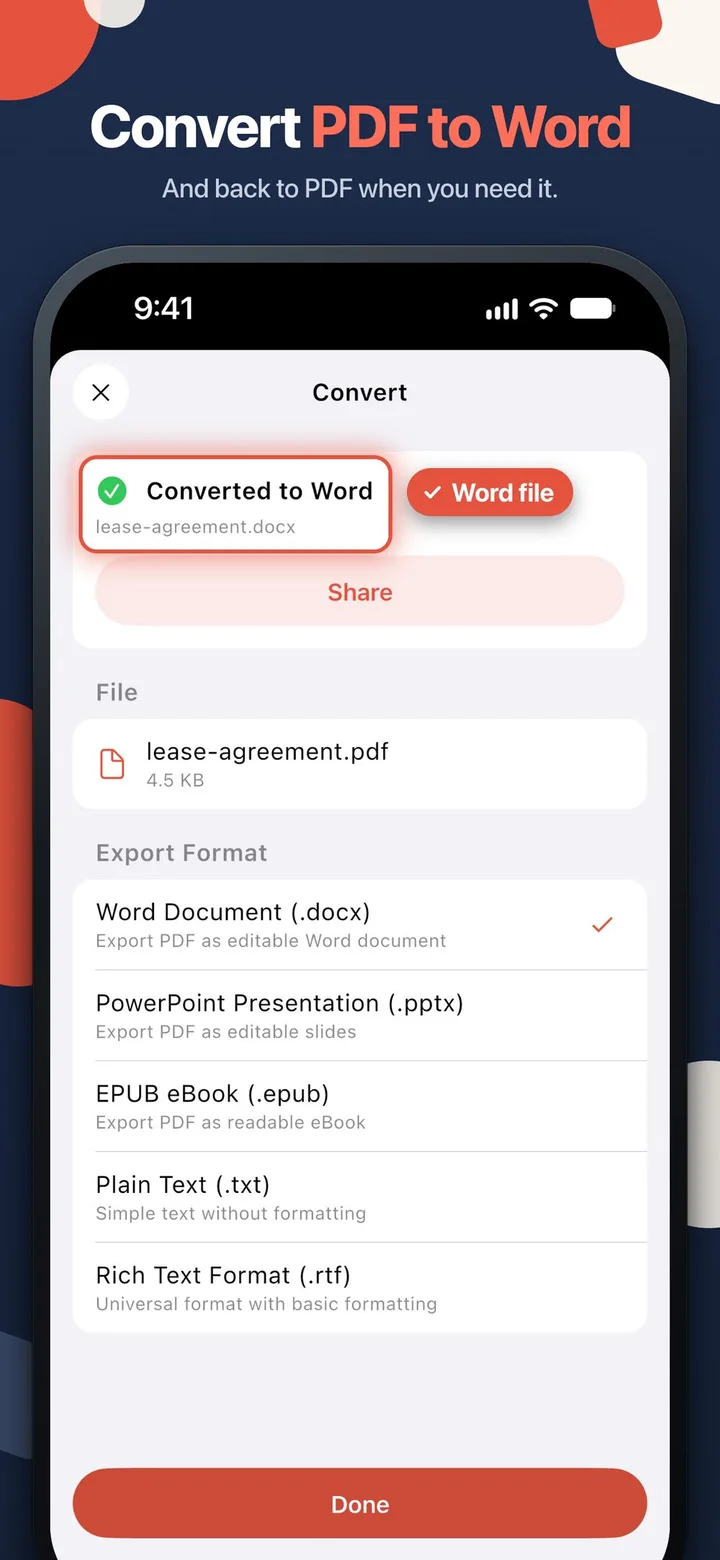
- Open Convert and pick the PDF. The screen shows the file and its size under File.
- Choose the format under Export Format. Pick Word Document (.docx). The same list has PowerPoint Presentation (.pptx), EPUB eBook (.epub), Plain Text (.txt) and Rich Text Format (.rtf).
- Start the conversion. When it’s done, the screen says “Converted to Word” with the new file name, for example lease-agreement.docx.
- Tap Share to send the Word file, save it to Files or open it in another app. Tap Done when you’re finished.
Your original PDF stays as it was. The Word file is a new file next to it.
How to convert Word, PowerPoint or Excel to PDF
The other direction works the same way in myPDF. Pick the Word, PowerPoint, Excel or EPUB file in Convert, and you get a PDF back that you can sign, mark up or send. Turning photos into a PDF is a separate tool and comes with the app, no Pro needed.
Tips
- Open the result before you send it. Scroll through the Word file once. Check headings, tables and page breaks, the parts that move most.
- Keep the PDF. Send the Word file for editing, but keep the PDF as the version you signed or sent first.
- Pick the simplest format that works. If someone only needs the words, Plain Text (.txt) is the cleanest. Rich Text Format (.rtf) keeps basic formatting and opens almost everywhere.
- Sign after the last change. If the document still needs a signature, make the edits in Word, convert it back to PDF, then sign the PDF. A signature should go on the final version.
What this can’t do
A PDF isn’t built like a Word document. It stores where each piece of text sits on the page, not paragraphs and styles. So a converted file may not look exactly like the PDF, especially with columns, tables or unusual fonts. Plan a few minutes to tidy it up.
A scanned PDF is different again. Each page is a picture of text, not text. Press and hold a word: if nothing gets selected, the page has no real text, and you shouldn’t expect editable words from it in Word. Our guide on turning a scan into a searchable PDF explains the difference.
These steps are written for iPhone and iPad. myPDF for Mac converts the same formats in both directions (also Pro), and Convert is in myPDF on Google Play too, but the screens there may look different.
Quick answers
- Can an iPhone convert a PDF to Word without an app? Not into an editable Word file. You can copy text out of a PDF, and you can print many documents to PDF.
- Is converting free in myPDF? No, it’s part of Pro, one purchase with no subscription.
- Does it change my original PDF? No. You get a new file.
- Which formats? PDF to Word, PowerPoint, EPUB, text or RTF, and Word, PowerPoint, Excel or EPUB to PDF.